Dive into the features that power your experience. From smart, intuitive tools to seamless performance, every function is designed to make your life easier and more connected. Whether you’re organizing your day, discovering new possibilities, or staying in touch, our app delivers the innovation and simplicity you need—all in one place.
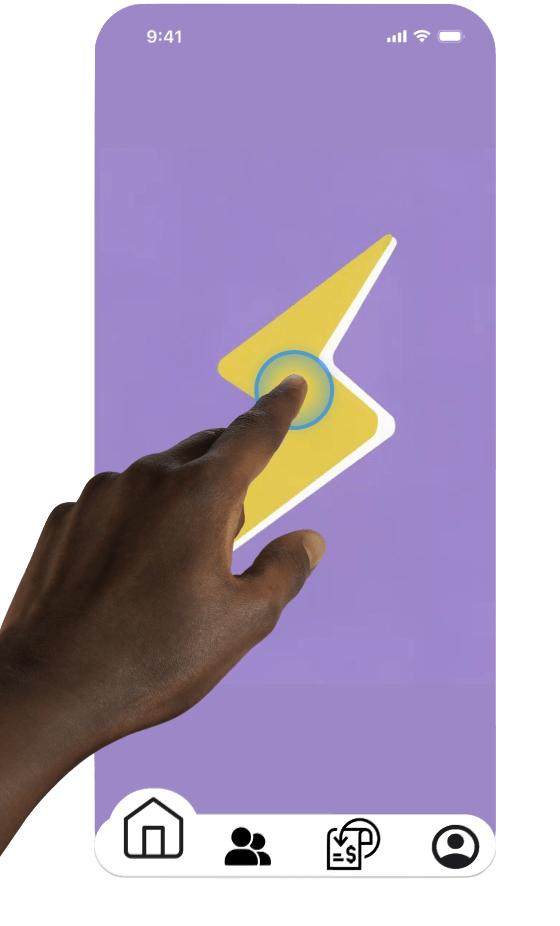
Step 1:
Begin by clicking the “SPLIT” icon on the home page to start the group session.
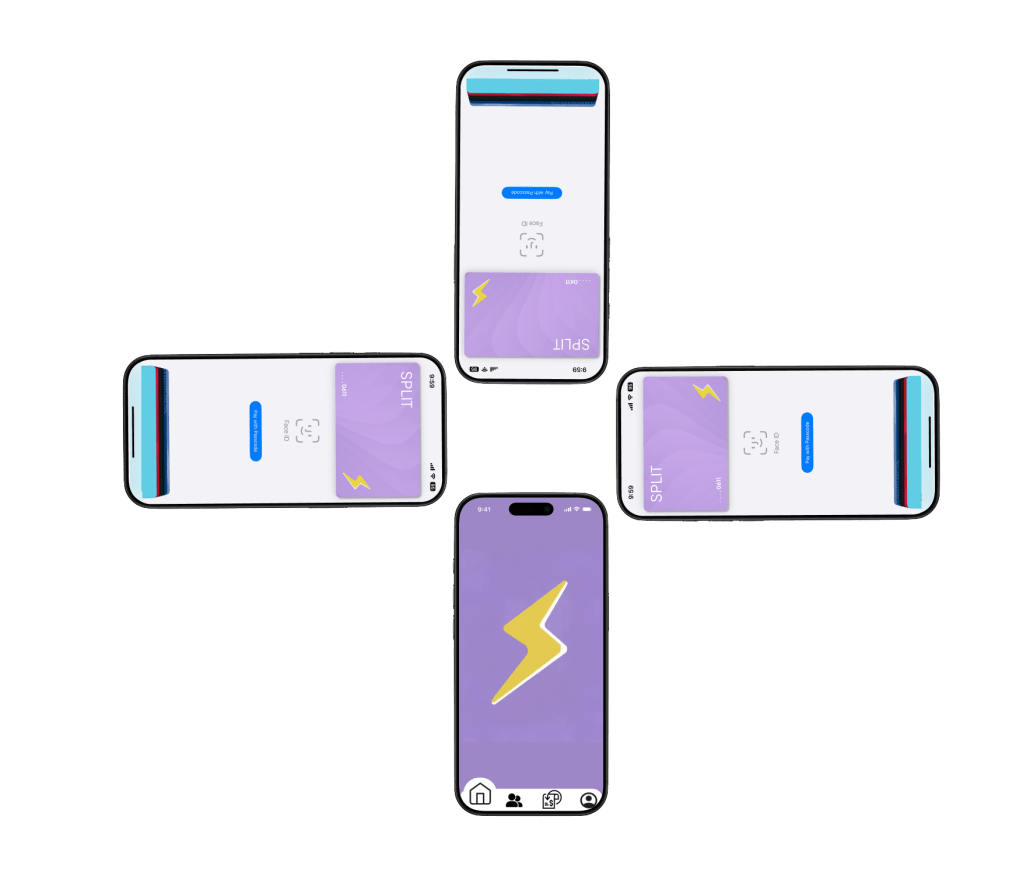
Step 2:
Users participating in the group session should open up their SPLIT card via Apple Pay or Google Pay, and tap their phone to the group initiator to begin the session.
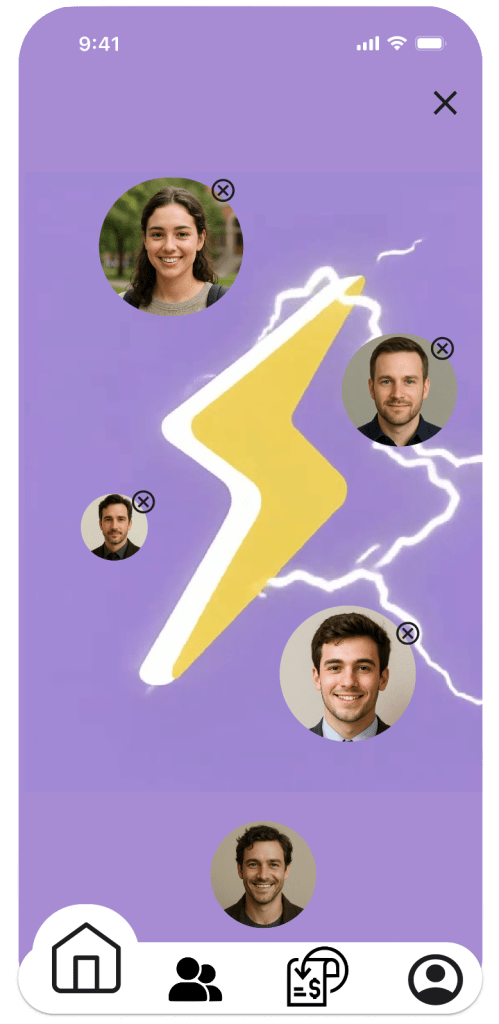
Step 3:
Once all users are in the group, the group initiator should see each SPLIT user’s profile around the bolt.
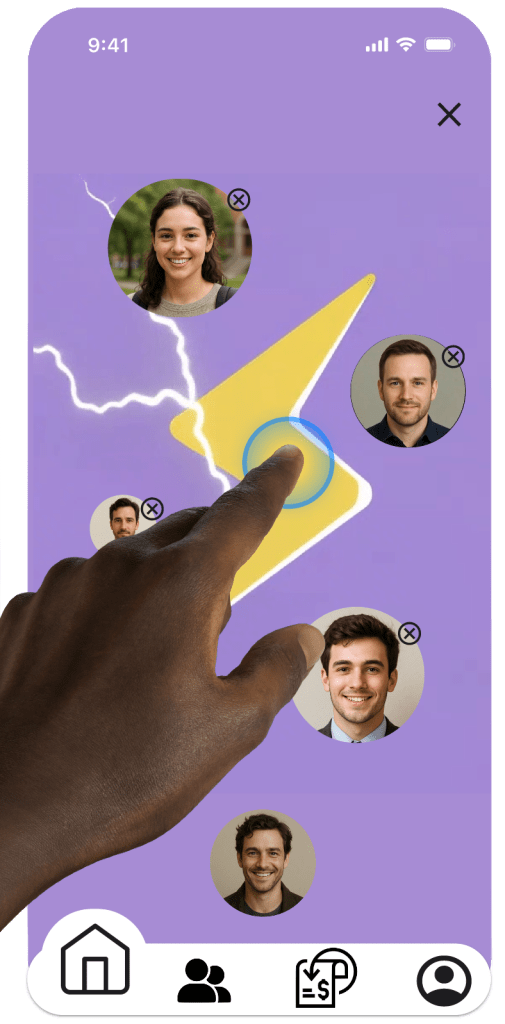
Step 4:
The group initiator must tap on the SPLIT logo to begin the transaction.
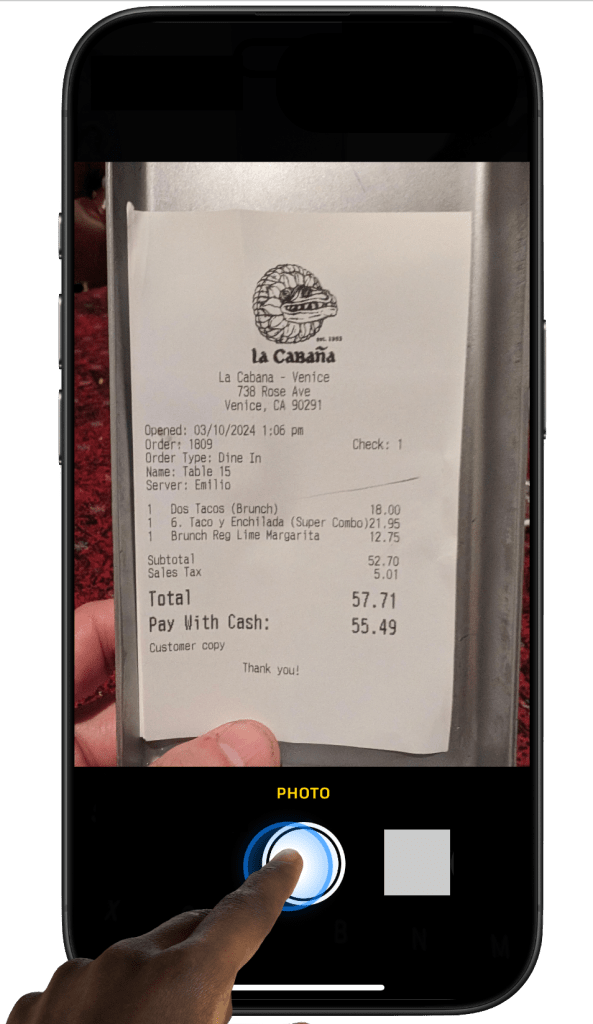
Step 5:
Once all group members have been approved for the session, the initiator will be prompted to take a photo of the receipt.
SPLIT Evenly
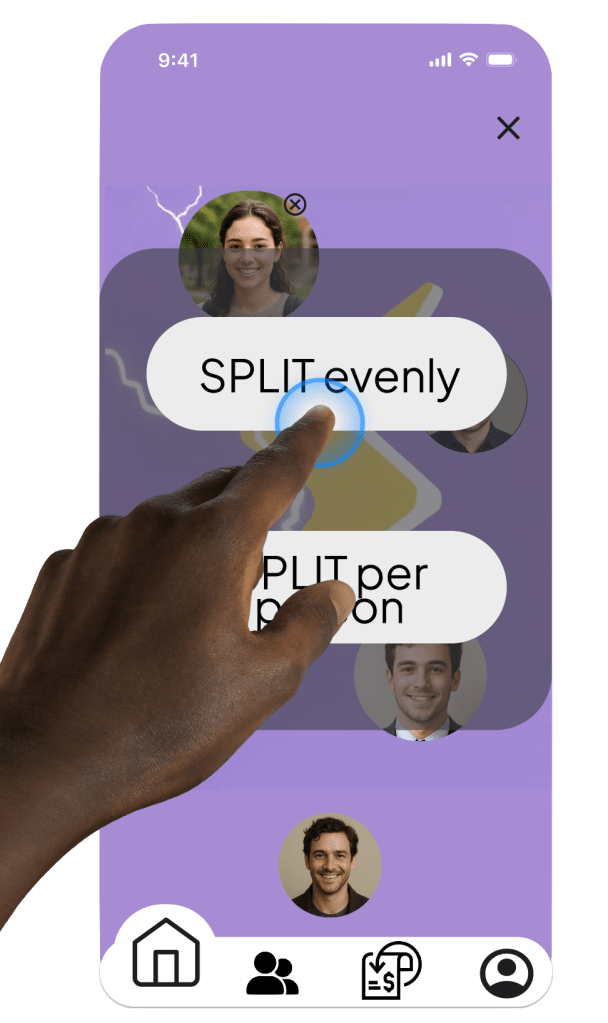
Step 6:
The group initiator can choose to SPLIT the bill evenly.
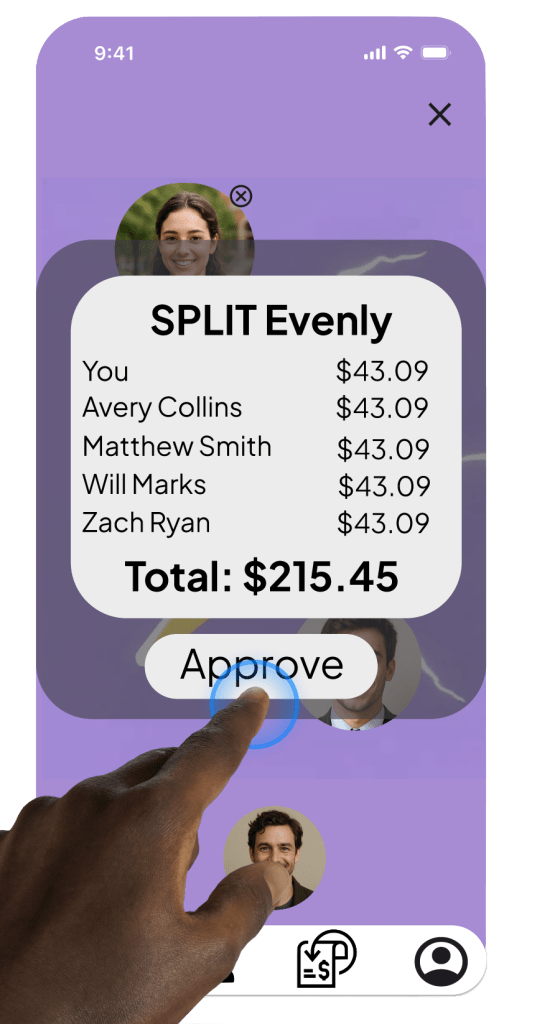
Step 7:
Once the amount appears on the screen, the group initiator will be prompted to approve the presented amount.
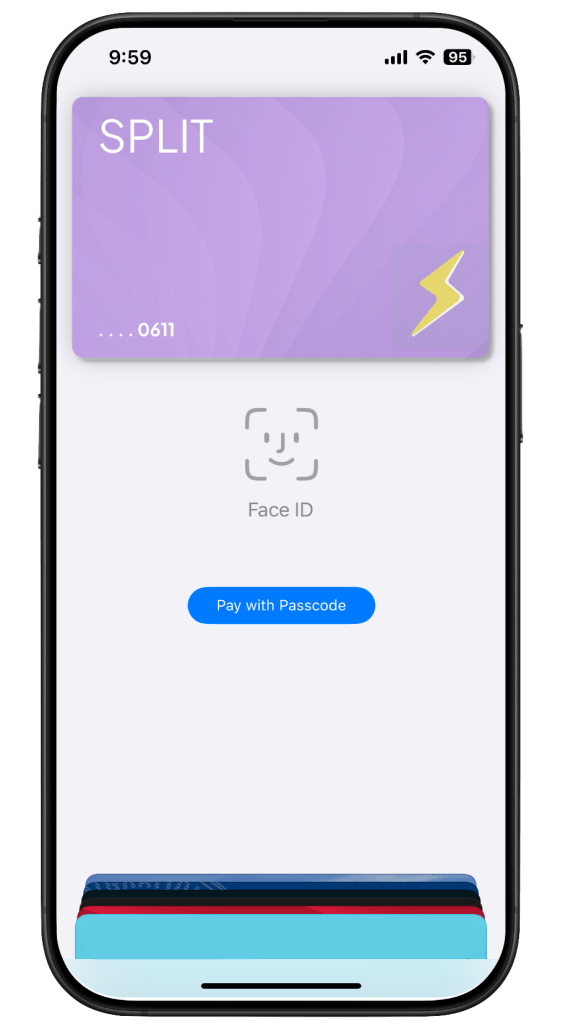
Step 8:
Once approved, the group initiator will be prompted to use their SPLIT card to “Tap n’ SPLIT” the bill at the establishment.
SPLIT Per User
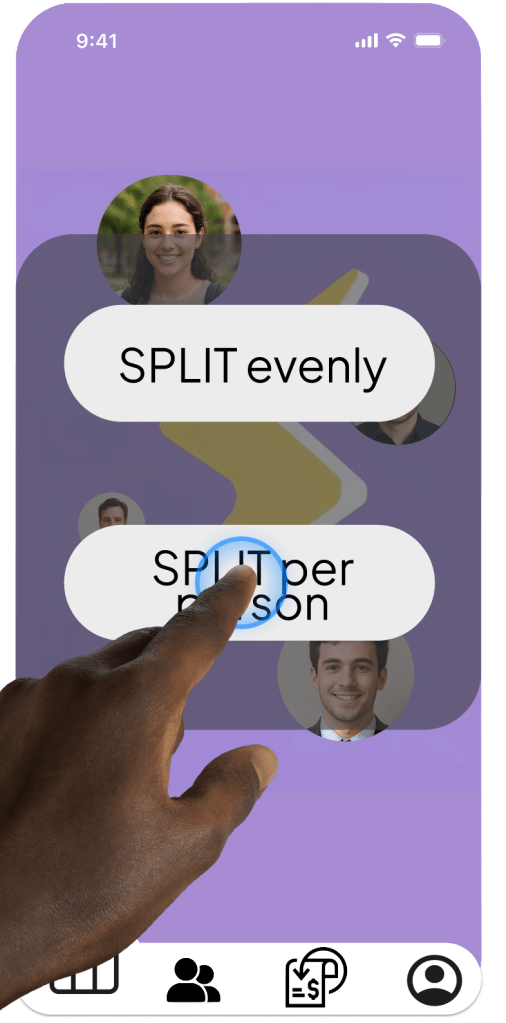
Step 6:
The group initiator can choose to SPLIT the bill per user.
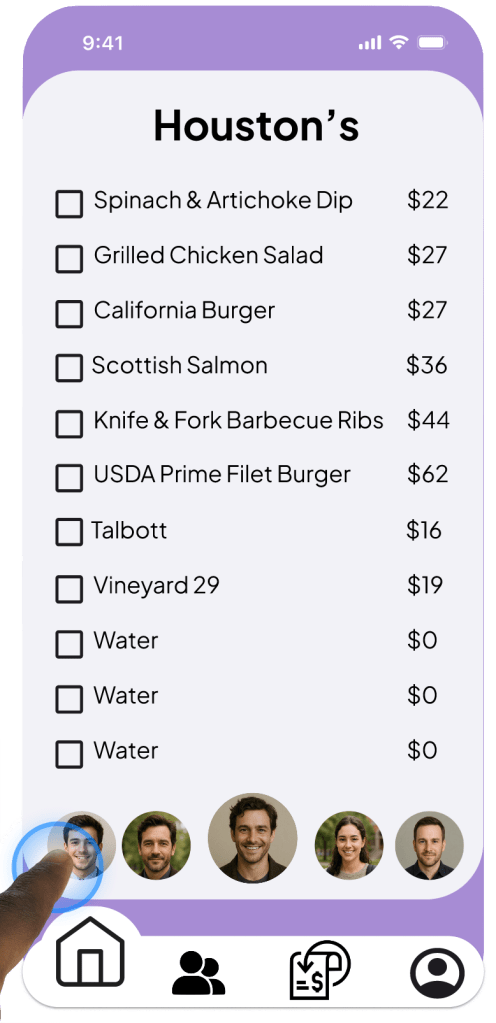
Step 7:
The group initiator will be prompted with a digitally generated version of the receipt they took a picture of in step 5, and can click on which group member they want at the bottom.
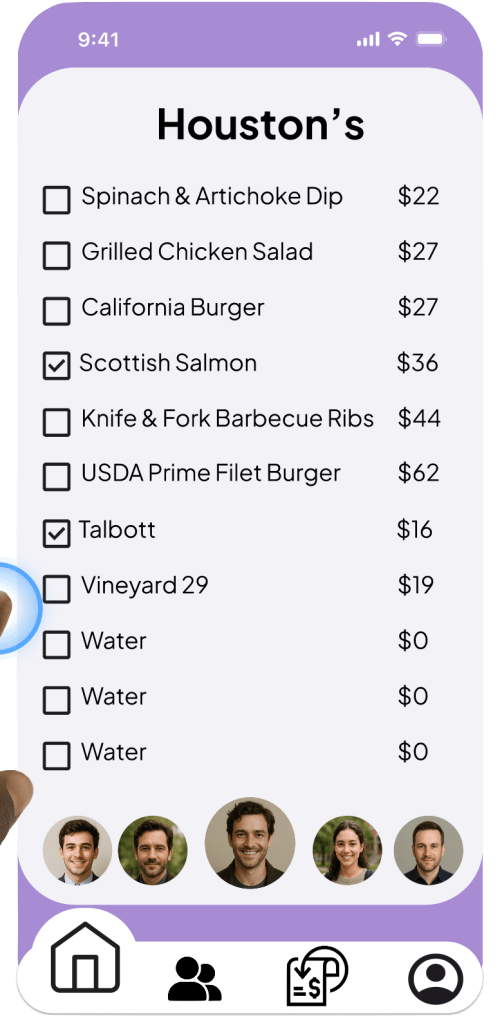
Step 8:
The initiator will be able to select what each member ordered from the digital receipt.
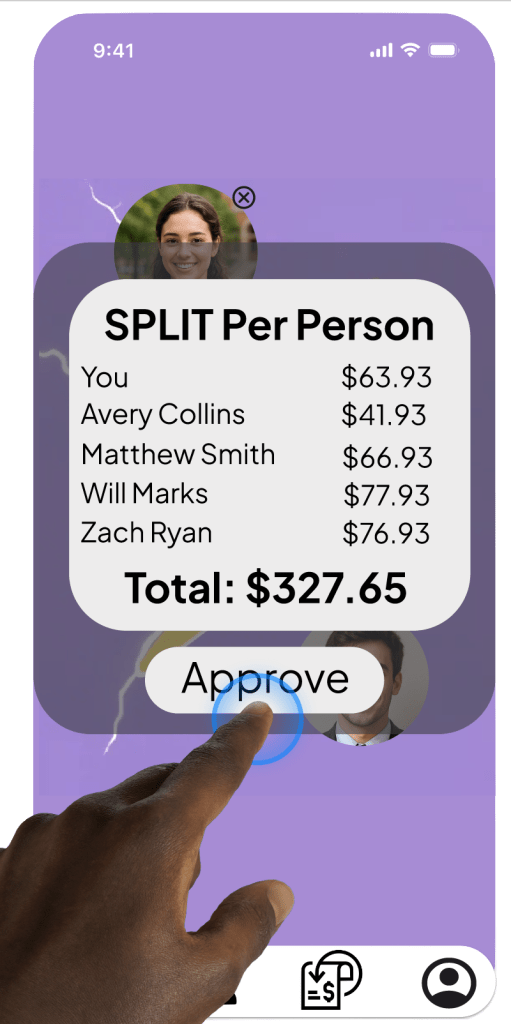
Step 9:
Once each person has been selected, they must approve the total amount and validate each group member’s total.
Step 10:
Once approved, the group initiator will be prompted to use their SPLIT card to “Tap n’ SPLIT” the bill at the establishment.
Learn more about SPLIT’s main menu features!
 SPLIT
SPLIT 